





Recruiters search for candidates on LinkedIn because that is where the talent already sits. LinkedIn has surpassed 1 billion members across more than 200 countries and territories.[1] That scale is worth learning to work well: 46.1% of employers use professional networking sites like LinkedIn to reach talent, according to iHire's State of Online Recruiting 2025.[2] This guide covers the free methods, Boolean search, the paid tiers, AI-assisted search, and the capture workflow that turns a search into a usable shortlist.
Search for Candidates on LinkedIn (Free)
You do not need a paid seat to start sourcing. A free account gives you real reach if you search deliberately. Follow these five steps.

Start in the People tab. Type a job title or skill into the top search bar, then click the People tab. Skip Posts and Companies, which return the wrong result type for sourcing.

Apply the free filters. Narrow results with Locations, Current company, Past company, School, Connections, and Industry. Stacking two or three filters cuts a broad list down fast.
Target competitor employees. Search for current employees of specific companies where your ideal talent already works. This is more reliable than generic keywords, because passive profiles are often out of date and under-tagged.

Use the “Open to Work” signal. Look for the #OpenToWork frame and hashtag plus profile signals to find people who are actively job hunting. These candidates usually reply faster.
Engage with relevant Groups. Search LinkedIn Groups tied to your niche, then monitor them over time. Groups surface specialists who rarely appear in a plain title search.
Free accounts have a ceiling. LinkedIn applies a commercial-use limit that caps how many searches you can run each month. Out-of-network profiles (3rd-degree and beyond) show reduced detail, and direct messaging is limited and rationed. For low-volume hiring this is workable; for high-volume sourcing you will hit the wall.
Using LinkedIn AI Search: Hiring Assistant & AI-Assisted Sourcing
LinkedIn's AI features shorten the setup, not the judgment. LinkedIn Hiring Assistant takes a role brief and returns a candidate shortlist for review. AI-assisted search suggests filters and phrasing based on how you describe the role. Treat every AI shortlist as a draft: read each profile and confirm fit yourself before anyone moves forward.
What to Do After Identifying Candidates: Capture and Workflow
A search only matters if the results survive the browser session. This workflow takes you from a defined target to a tagged, contactable shortlist inside your ATS, so the same sourcing work is never repeated. The goal is one searchable pipeline instead of a wall of open tabs.
Starter stack:
- LinkedIn free People search, or Recruiter Lite if budget allows.
- One Boolean string saved per role, ready to rerun.
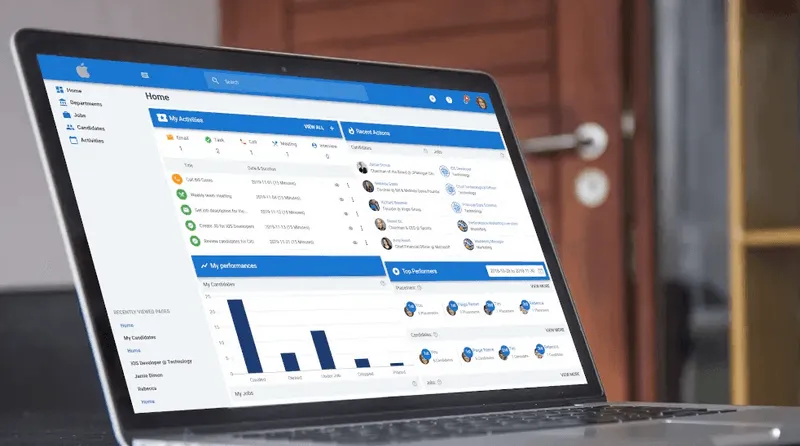
- A sourcing extension (such as the Manatal People-Match AI Chrome extension) pulls a LinkedIn profile directly into the ATS in one click.
Execute the workflow in the following order:
- Define the target. Write down the role, must-have skills, location, and seniority, then turn it into one Boolean string.
- Run the search. Paste the string into the People tab and apply your filters.
- Scan against must-haves. Skim results, open the promising profiles, and judge fit yourself. This is the first human checkpoint.

- Capture immediately. Save each candidate into your pipeline the moment you find them, so the shortlist outlives the browser session. To save profiles, use the Manatal People-Match AI Chrome extension to capture the profile into the Manatal ATS in one click, which keeps strong candidates out of lost tabs. Export manually if you have no extension. Confirm fit before you add.
- Tag and segment. Label each profile by role and add a source note so you know where it came from.
- Personalize outreach. Reference something specific from the profile, and respect connection and InMail limits.
- Track and advance. Log responses and move candidates through stages in the ATS.
{{cta}}
Boolean Search on LinkedIn (With Copy-Ready Examples)
Boolean search combines keywords with operators so the results match what you actually want. Three rules cover most of it. Put exact phrases in straight quotes. Write AND, OR, and NOT in capitals. Use parentheses to group terms that belong together.
Two copy-ready strings you can paste into the search bar:
("software engineer" OR "backend developer") AND Python NOT intern
("account executive" OR "sales manager") AND SaaS AND ("New York" OR remote)
Boolean works in the free People search and gives you precise control without a paid seat. The same syntax is more powerful inside LinkedIn Recruiter, where it pairs with advanced filters.
Free vs. Paid: LinkedIn Recruiter Lite, Recruiter, and Sales Navigator
Each tier changes what you can filter, how deep you can search, and how many people you can message. Below is a breakdown of feature capabilities (excluding pricing). For cost detail, see our guide on how much LinkedIn Recruiter costs.
- Free/Basic account. People search, basic filters, and Boolean; commercial-use search cap and limited out-of-network visibility. Best for low-volume or occasional hiring.
- Recruiter Lite. More advanced filters, higher search volume, and more InMails. Fits a single recruiter or a small team.
- Recruiter Corporate. 40+ advanced filters, Spotlights including Open to Work, Resume Search, AI-assisted "ideal candidate" search, and the highest messaging limits. Built for high-volume TA teams.
- Sales Navigator. Strong search and lead filters that some recruiters use, but it is built for sales, not hiring.
- LinkedIn Hiring Assistant. An AI agent that searches, reviews, and returns a shortlist while the recruiter keeps control of the final decision.
Conclusion
Finding the right candidates on LinkedIn comes down to running structured searches, capturing profiles instantly before losing them in browser tabs, and keeping human judgment at the core of your outreach. Whether you rely on free Boolean strings, AI search tools, or a full LinkedIn Recruiter seat, your success depends on moving prospects out of LinkedIn and into a centralized ATS pipeline where you can track responses and advance top talent. Use these strategies to refine your sourcing process, reach passive candidates faster, and build a scalable talent pool for every open role.
Frequently Asked Questions
Q: How do I search for candidates on LinkedIn for free?
A: Use the People tab from the top search bar, enter a job title or skill, and apply free filters like Locations, Current company, Past company, School, and Industry. Add a Boolean string for precision, target employees of competitor companies, and watch relevant Groups. A free account limits monthly searches and out-of-network visibility, but it is enough for low-volume hiring.
Q: Can I search for someone on LinkedIn without them knowing?
A: Searching for and viewing search results does not notify anyone. Opening a full profile can show up in their "Who viewed your profile" activity unless you browse in Private Mode (which is available on both free and paid accounts, though viewer details are hidden in return on free plans). Running searches, applying filters, and reviewing result snippets stays invisible to the candidate.
Q: How do I find candidates on LinkedIn without LinkedIn Recruiter?
A: A free account plus a disciplined process covers most needs. Save one Boolean string per role, filter by company and location, and use the Open to Work signal and Groups to find active seekers. Capture each profile into an ATS or sourcing extension so your shortlist is not trapped in browser tabs.
Q: What is the difference between LinkedIn Recruiter and Recruiter Lite?
A: Recruiter Lite suits a single recruiter or small team with more advanced filters, higher search volume, and more InMails than a free account. Recruiter Corporate adds 40+ filters, Spotlights, Resume Search, AI-assisted search, and the highest messaging limits for high-volume teams. For a cost breakdown, see our LinkedIn Recruiter cost guide.
Q: How do I write a Boolean search for candidates on LinkedIn?
A: Put exact phrases in straight quotes, write AND, OR, and NOT in capitals, and group related terms with parentheses. For example, ("software engineer" OR "backend developer") AND Python NOT intern returns Python engineers while excluding interns. Build the string from your must-have skills, then paste it into the People tab.
Q: How do I keep the candidates I find on LinkedIn organized?
A: Capture every promising profile into one system the day you find it. The Manatal People-Match AI Chrome extension pulls a LinkedIn profile into the Manatal ATS in one click, then you tag it by role, add a source note, and track it through your stages. That keeps your shortlist searchable instead of scattered across tabs and spreadsheets.
Citations
.webp)







.webp)

.webp)


.webp)


