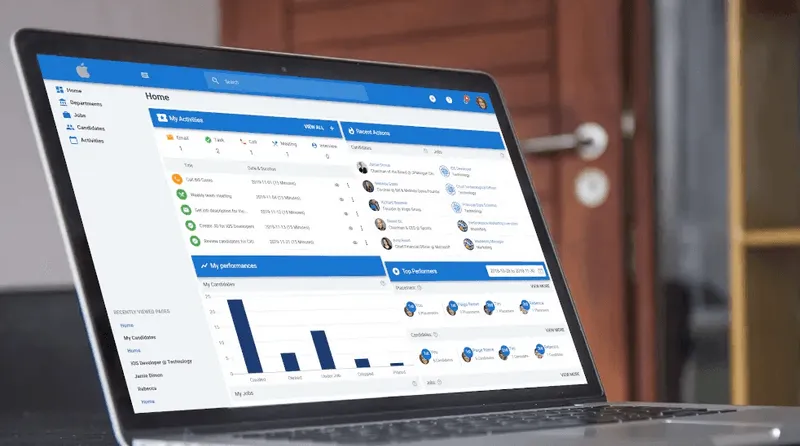
Most recruiters will tell you they are on board with AI. In practice it is often a tedious loop: your recruitment software in one tab, your CV folder in another, ChatGPT or Claude in a third. What comes back is usually a wall of text that takes as long to read and check as doing the work yourself would have.
Manatal Copilot works inside your account instead. It already has the candidate, the job, the notes and the email thread, so there is nothing to paste. Ask it to assess a candidate against a role and it reads both records. Ask it to create a candidate or a job and it builds the record for you. Save the prompts you repeat as Skills and run them on any record with a slash.
{{cta}}
What Manatal Copilot Does
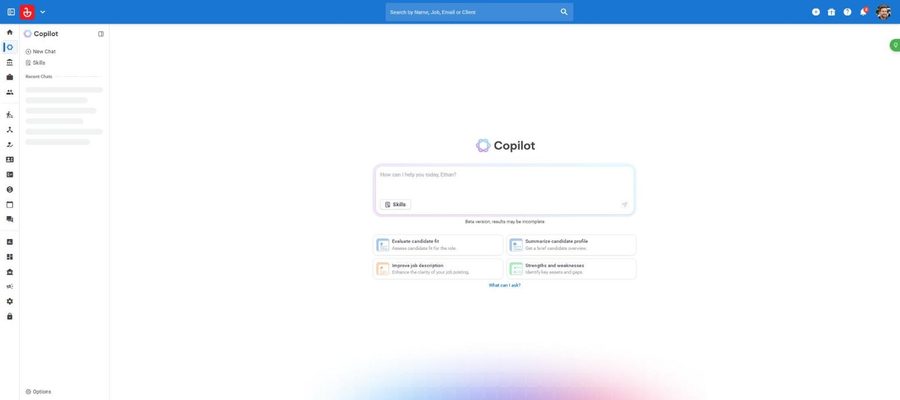
Manatal Copilot is an AI assistant built into your recruitment account. Instead of copying data out to a separate chat tool, you ask for what you need in plain language, right where the record lives. It handles the recruiting work around the conversation, from judging fit and preparing for calls to writing for clients and updating your database.
It works because it sees what you see. Copilot reads the candidate, the job, the pipeline stage, your notes and the email history together, then acts on what it finds. In practice that covers five kinds of work:
- Judges fit: a Strong, Partial or Poor verdict with the reasons and the biggest gap
- Prepares you: screening-call briefs, interview questions and a debrief that ends in an Advance, Hold or Decline recommendation
- Writes for clients: blind profiles, five-point scorecards and shortlist emails for the candidates you name
- Creates records: new candidates, new jobs, and matches that add a candidate to a job
- Updates candidates: change a candidate's position, location or salary in one sentence
It drafts emails and you send them. It cannot edit jobs, delete records or add notes.
Open It Where You Work
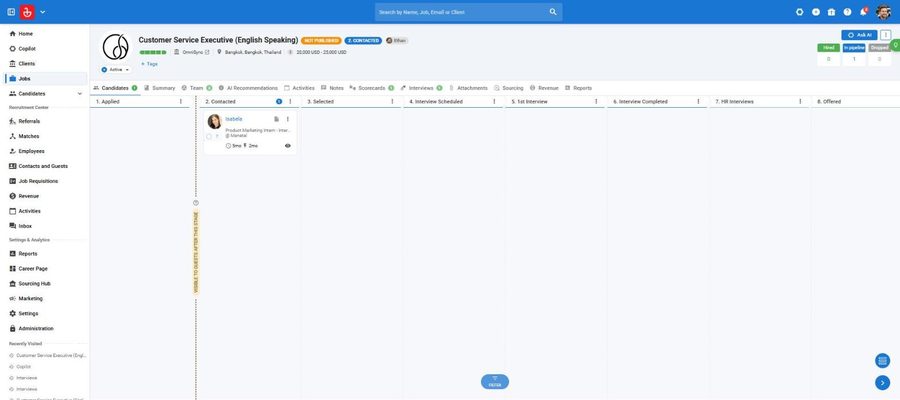
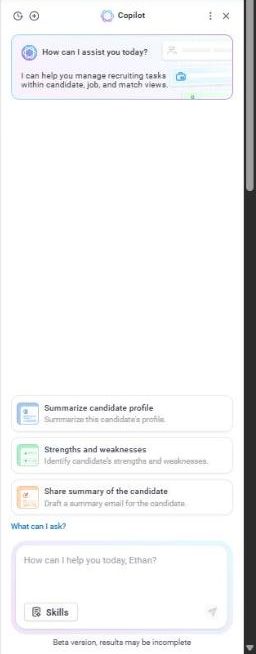
Click the Ask AI icon in the navbar, or in the header of a candidate, job, match or organization. The panel opens on the right and picks up the record you are on, so "this candidate" and "this job" work as written. For longer sessions, choose Copilot in the side menu for the full page on desktop. You can also name a record without opening it.
Four Workflows to Try First
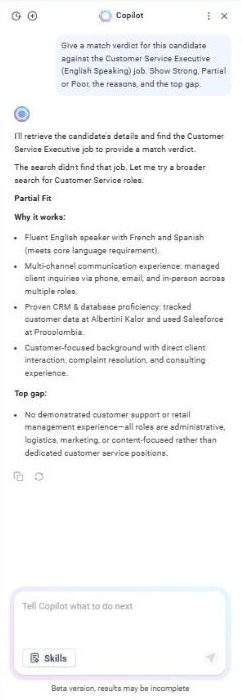
Get a Verdict in Seconds
Ask for a match verdict on a candidate against a job. You get Strong, Partial or Poor, the reasons behind it and the top gap, built from what is in the record. If Copilot cannot find the job on the first search, it widens the search on its own.
Walk Into the Call Prepared
Ask for a screening-call brief. It comes back in three parts: points to confirm, gaps to probe and aspects of the role to sell.
Send the Client a Shortlist
Name the candidates and ask for an executive summary for your client. Copilot retrieves each profile and fills an email with location, a short summary, availability and experience. Ask for a blind profile instead when the client should not see names.
Turn Interview Notes Into a Decision
After the interview, ask Copilot to turn your notes into a structured debrief. It lists strengths and concerns and ends with an Advance, Hold or Decline recommendation. The final call stays with you.
More Prompts to Try
- What concerns or risks should I explore when interviewing this candidate?
- How long has this candidate been in the pipeline, and at which stage?
- Summarize the notes for [candidate name] and list action items.
- What emails have we exchanged with [candidate name]?
More examples are in the Copilot documentation. See example prompts >>
Create and Update Records by Asking
Describe the candidate, job, or match you want, and Copilot creates it. Name a candidate and say what to change, and it edits the fields. Ask what it can do and it lists the actions it supports.
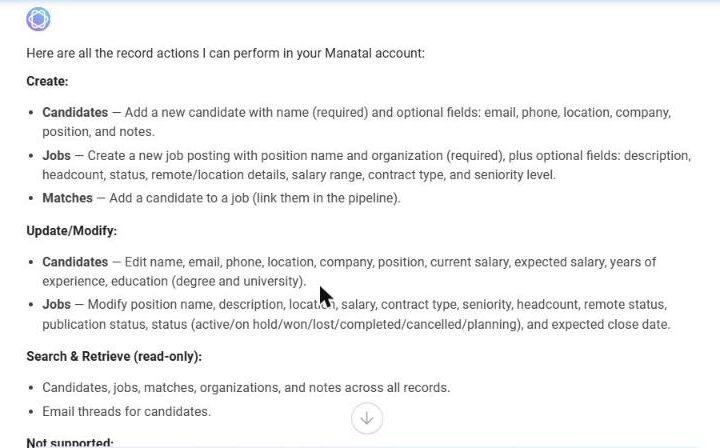
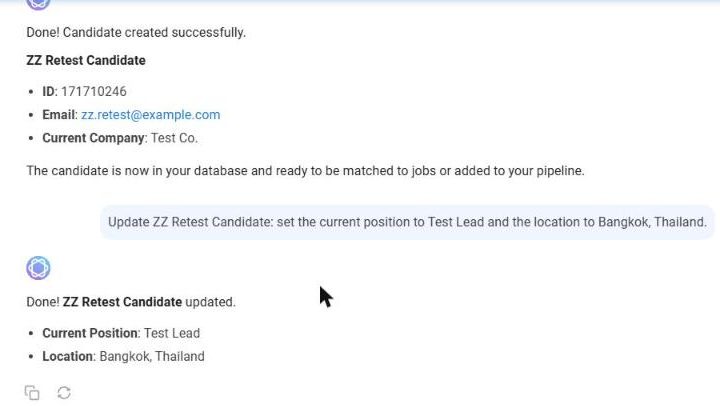
Here it creates a candidate and then updates the position and location in a second message.
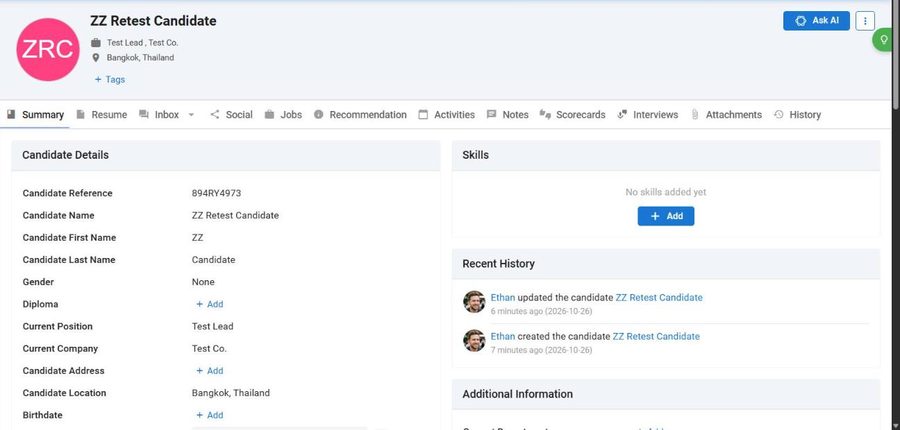
The changes show up on the profile, and the History tab records them under your name.
Copilot makes the change as soon as you send the request, so check the details before you press enter.
Teach It How You Work
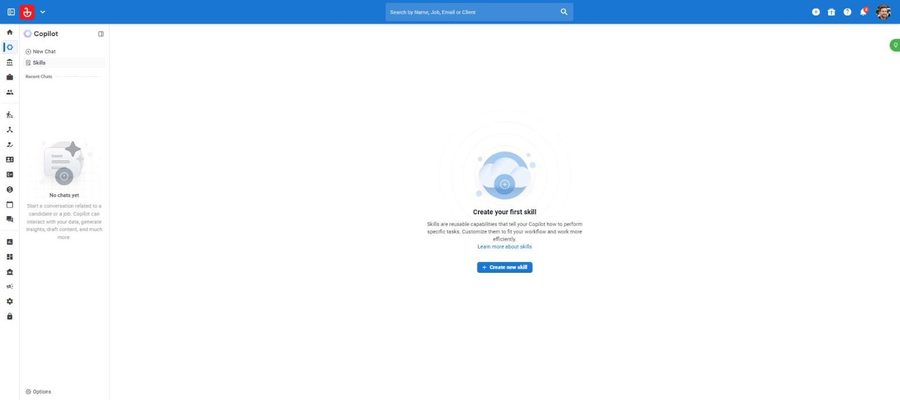
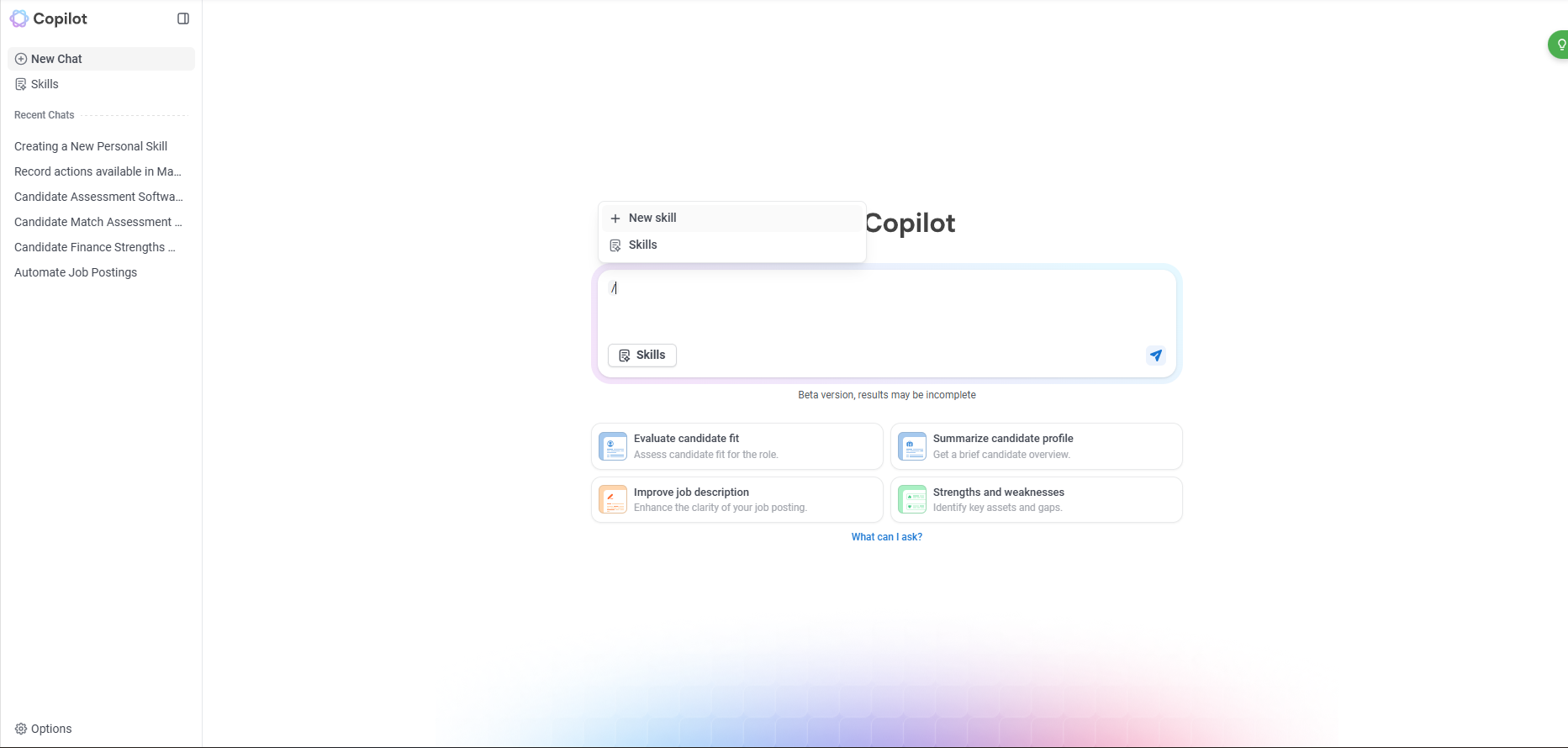
A Skill is a saved set of instructions for one task, and you build it in a short chat with Copilot. Once saved, it applies on its own when your request matches, or you pick it with a slash and it appears as a chip at the start of your message. Stack up to three in one message.
Start with the Traffic Light Candidate Screen. It rates a candidate Green, Yellow or Red against a job, shows the rating first and backs it with a few fact-based bullets. Skills are personal, so each recruiter builds their own.
What to Know Before You Start
Copilot is in beta, so review its answers before you act on them. It gives insights only, and you make every hiring decision. It reads only what your permissions allow, chat history stays private to each user, and custom fields are not available yet. Usage draws on AI credits, which rise with the amount of data and the complexity of the prompt.
Get Started
Copilot is in beta. Existing users can find it in the side menu of their account. Read documentation >>
Don't have a Manatal account yet? Book a demo >>
{{cta}}